
How to Back Up Your Files (Before Your Laptop Dies Mid-Semester)
L
By Lucas Rollins on October 10, 2026
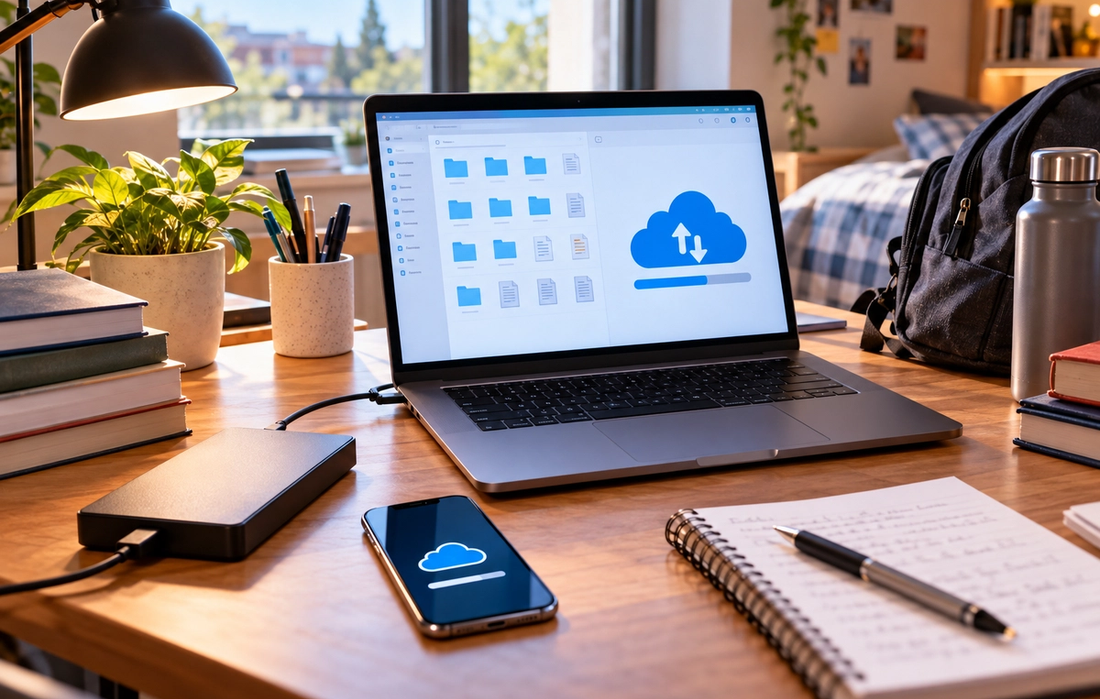
There are few student emergencies quite like opening your laptop the night before an assignment is due and discovering that it won’t turn on.
Suddenly, the laptop itself isn’t even the biggest problem.
Your essay is on there. So are your notes, research, presentations, internship applications, photos, and the group project everyone expects you to submit tomorrow.
If the only copy of an important file exists on your laptop, you don’t really have that file safely stored. You have one copy sitting on a device that can be dropped, stolen, damaged, corrupted, or simply decide to stop working.
Backing up your files sounds boring right up until the moment you need the backup.
The good news is that a reliable system doesn’t have to be complicated.
Understand what a backup actually is
Saving your essay in a folder called “College” is organization.
It isn’t a backup.
A backup means another copy of your data exists somewhere separate from the original. If your laptop disappears tomorrow, you should still be able to recover the important files.
That second copy might be stored in the cloud, on an external drive, or ideally in more than one location.
The key word is separate.
Keeping two copies of an assignment in different folders on the same laptop won’t help if the entire laptop fails.
Start with cloud storage
For most students, cloud storage is the easiest first layer of protection.
Services such as Google Drive, Microsoft OneDrive, Apple iCloud, or Dropbox can store files online and synchronize them across devices.
Instead of keeping your essay only on your laptop, you can save it inside a synchronized folder. Changes can then be uploaded automatically while you work.
That means if your computer stops functioning, you may be able to sign in from another device and continue from the latest synchronized version.
Check whether your university provides cloud storage through your student account before paying for additional space yourself.
Whatever service you choose, make sure synchronization is actually working. Seeing an app installed on your computer doesn’t necessarily mean every important folder is being backed up.
Don’t confuse syncing with a perfect backup
Cloud syncing is extremely useful, but it has limitations.
If you accidentally delete a synchronized file, that deletion may also sync. If a file becomes corrupted, the damaged version may replace the good one. Some services offer trash folders and version history, but those features can have limits.
That’s why important files shouldn’t rely on only one system.
A useful rule for valuable data is known as the 3-2-1 approach: keep three copies of your data, use two different types of storage, and keep one copy in a separate location.
You don’t necessarily need an enterprise-level backup system for your sociology notes.
But for irreplaceable work, having both cloud storage and another backup is sensible.
Get an external drive
An external hard drive or solid-state drive can provide another copy of your important files.
Connect it to your laptop regularly and back up your documents, photos, projects, and anything else you would be genuinely upset to lose.
Many computers have built-in backup tools that can automate much of this process. Instead of manually dragging individual files onto the drive every few months, you can configure your computer to back up selected data whenever the drive is connected.
Then disconnect the drive when you’re finished.
Leaving your backup drive permanently attached to your laptop reduces some of the protection it provides. If your laptop is stolen along with the drive sitting beside it, both copies disappear together.
The same problem applies to physical damage.
A backup stored somewhere separate is safer.
Decide what you actually need to protect
Not everything on your laptop deserves the same level of attention.
Start with files that would be difficult or impossible to recreate.
That includes essays, research, thesis work, class notes, original projects, internship materials, important documents, personal photos, creative work, and anything else you produced yourself.
Applications and downloaded files can often be replaced.
Your 4,000-word paper that took two weeks to write cannot.
Organize your important material into clear folders so you know exactly what needs to be included in your backup system.
This also makes transferring everything to a new computer much easier if your current one eventually dies.
Back up while you’re working, not after
Don’t wait until an assignment is finished to protect it.
A laptop can crash when you’re 80 percent finished just as easily as when you’re done.
For important assignments, save the working document somewhere that automatically synchronizes to the cloud. If you’re writing in desktop software, turn on automatic saving when available.
You can also create occasional milestone versions for major projects.
Instead of continuously overwriting one thesis document for six months, keep important versions as the project develops. If something goes badly wrong with the latest copy, you have an earlier version to return to.
Version history can also help when you accidentally delete half a paragraph and only notice three days later.
Protect your backups too
A backup containing all your personal files deserves protection.
Use a strong, unique password for your cloud-storage account and enable two-factor authentication when available.
Be especially careful with external drives containing sensitive information. Depending on your device and operating system, you may be able to encrypt the drive so someone can’t simply plug it into another computer and access everything.
And don’t share cloud folders publicly unless you actually intend them to be public.
Backing up your files protects them from disappearing.
Basic security helps protect them from ending up somewhere they shouldn’t.
Test whether your system works
A backup you have never checked is partly an act of faith.
Every once in a while, open your cloud storage from another device and make sure recent files are there. Check your external backup and confirm that the folders you care about are actually included.
Try restoring a test file.
You don’t want to discover during an emergency that your backup stopped running four months ago because you changed a setting.
A good backup system should be boring enough that you barely think about it.
But it should also be something you’ve confirmed actually works.
Make the process automatic
The best backup routine is the one that doesn’t depend on you remembering to do it during finals week.
Use automatic cloud synchronization for everyday files. Set up your computer’s built-in backup system with an external drive. Add a recurring reminder to connect the drive if necessary.
Once everything is configured, maintaining the system may take only a few minutes.
That tiny amount of effort can save dozens or hundreds of hours later.
Because laptops are replaceable.
The semester’s worth of work stored inside them may not be.
Back it up before your computer gives you a reason to wish you had.

How to Stop Procrastinating (Backed by Psychology)
You know the assignment is due Friday. You’ve known about it for two weeks. You even opened the document three days ago. And yet, somehow, it’s Thursday night and you’re suddenly very interested in reorganizing your desk, answering old messages, and researching something that has absolutely nothing to do with the assignment.
Legacy Park|3 weeks ago

How to Build Habits That Actually Last
Lian Everett|3 weeks ago

The Difference Between Discipline and Motivation
Joey Zimmerman|3 weeks ago

How to Become a Better Decision Maker
Noah Shepard|3 weeks ago

The Two-Minute Rule That Solves Procrastination
Lucas Rollins|3 weeks ago

How to Read More Books This Year
Colton Watts|3 weeks ago
Read More
The Real Difference Between a Job, a Career, and a Calling
Legacy Park|

The Real Difference Between Free and Paid AI Tools
Joey Zimmerman|

The Quiet Loneliness of College (And What Actually Helps)
Legacy Park|

Why “Finding Yourself” Takes Longer Than Anyone Told You
Lian Everett|

The Real Difference Between Being Smart and Being Educated
Lian Everett|

Why Some Students Peak in College (And Others Don’t)
Noah Shepard|

The Cultural Power of the College Years (For Better or Worse)
Lucas Rollins|

Why the Best Advice You Get in College Rarely Comes from a Professor
Colton Watts|

How to Use AI to Study Smarter (Not Just Faster)
Legacy Park|
The Apps Every Student Should Actually Download
Lian Everett|
How to Take Better Class Notes with Just Your Laptop
Joey Zimmerman|

How to Back Up Your Files (Before Your Laptop Dies Mid-Semester)
Lucas Rollins|
How to Spot AI-Generated Content Even When It’s Good
Colton Watts|

The Weirdest College Traditions Around the World
Joey Zimmerman|

The Movies Every College Student Should See at Least Once
Joey Zimmerman|

The Best Ways to Actually Enjoy a Weekend Off Campus
Joey Zimmerman|

The Games That Every Dorm Room Ends Up Playing
Joey Zimmerman|
The Most Unhinged True Stories from Ivy League Campuses
Lucas Rollins|

The Books That Are Actually Fun to Read (Not Just Required)
Colton Watts|

How to Stop Procrastinating (Backed by Psychology)
Legacy Park|